What Sval does
Sval is a browser for Linux, macOS, and Windows, and it’s coming soon to iOS and Android. You don’t create an account, Sval has no built-in AI, and it doesn’t collect telemetry or personal data.
Keep work and home apart with Workspaces
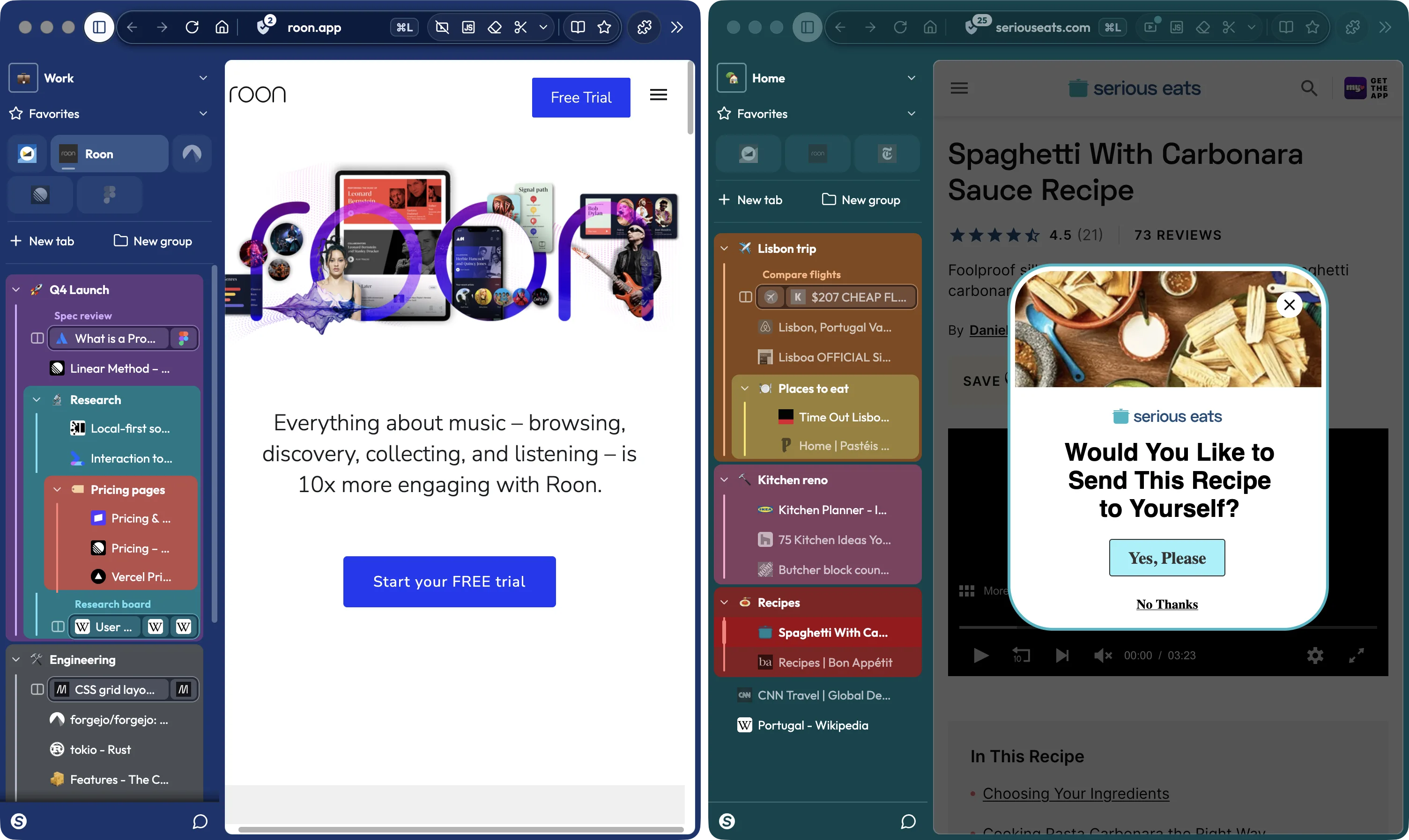
Give work, home, and anything else its own Workspace, each in its own window. If you want, a Workspace can keep its sign-ins separate from the rest.
Workspaces
Make a Workspace for each part of your life and customize it so you can tell them apart at a glance. The switcher at the top of the panel moves a window to a different Workspace.
Sync
Open Sval on another device and your Workspaces are already there, with the same tabs and groups. See Sync.
Isolated Workspaces
Isolate a Workspace and it keeps its own cookies and sign-ins. That’s how you stay signed in to your work and personal accounts on the same site at the same time.
Archive idle tabs
If you turn it on, tabs you haven’t touched in a while move to History › Archived tabs. One click puts a tab back where it was.
Downloads and History per Workspace
Downloads and History show what you did in the current Workspace, or everything if you’d rather. History opens next to the page you’re on and tells you which device you last visited each page from.
Group tabs, “Split” them side by side
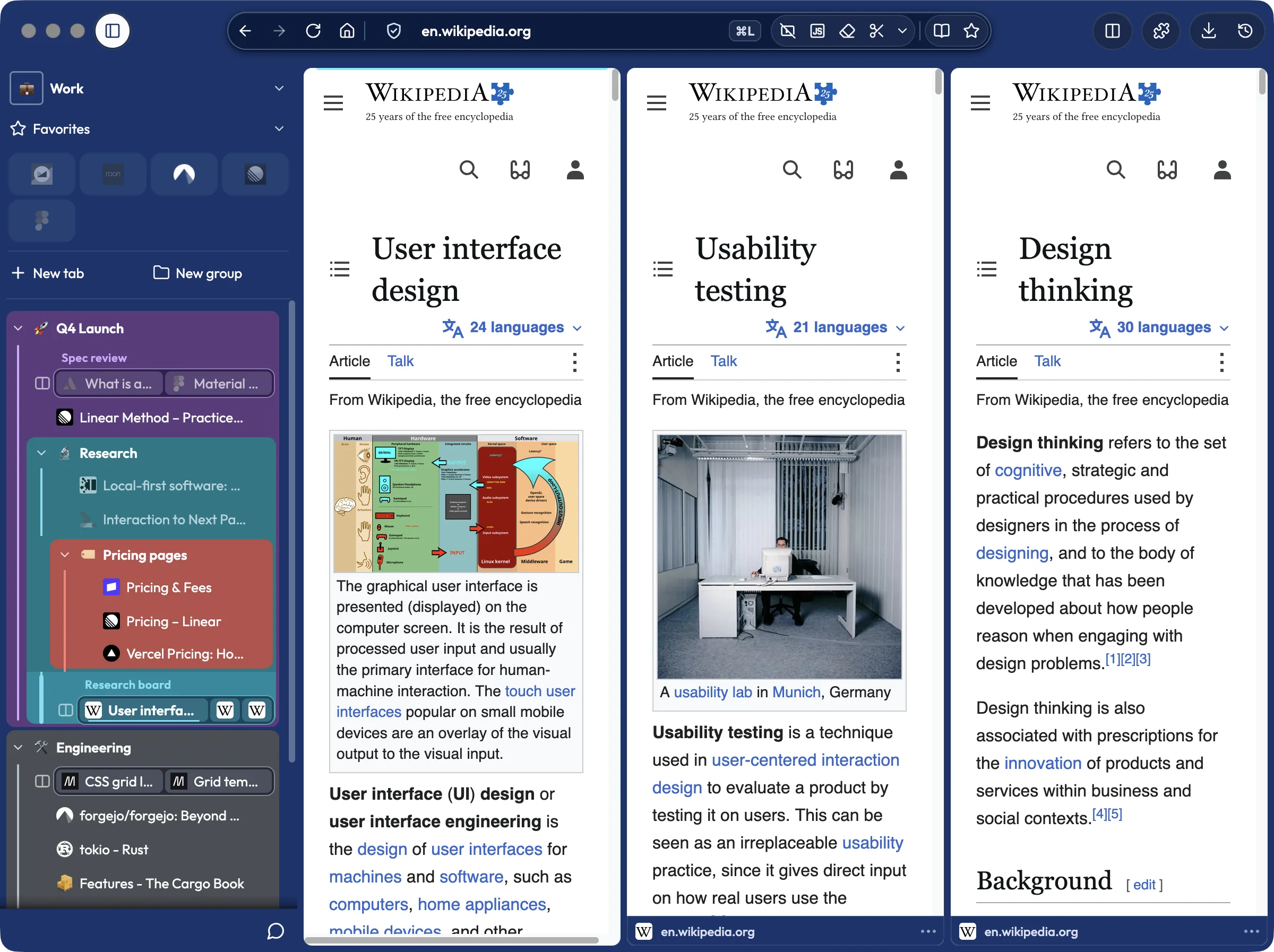
Tabs live in a panel on the side of each Workspace. Group them, nest groups inside groups, and open up to four tabs at once in a Split when you need to see them together.
Nested groups
Drag a tab onto another to group them, or drag a group into another group to nest it. The panel can sit on either side of the window at whatever width you like.
Split View
Start a Split from a link’s or tab’s menu, by Option-clicking (Alt-clicking) a second tab, or with ⌃+ (Ctrl+Shift+Plus). Splits remember their sizes after a restart and sync to your other devices.
Pin your sites, and “Peek” links without losing your place
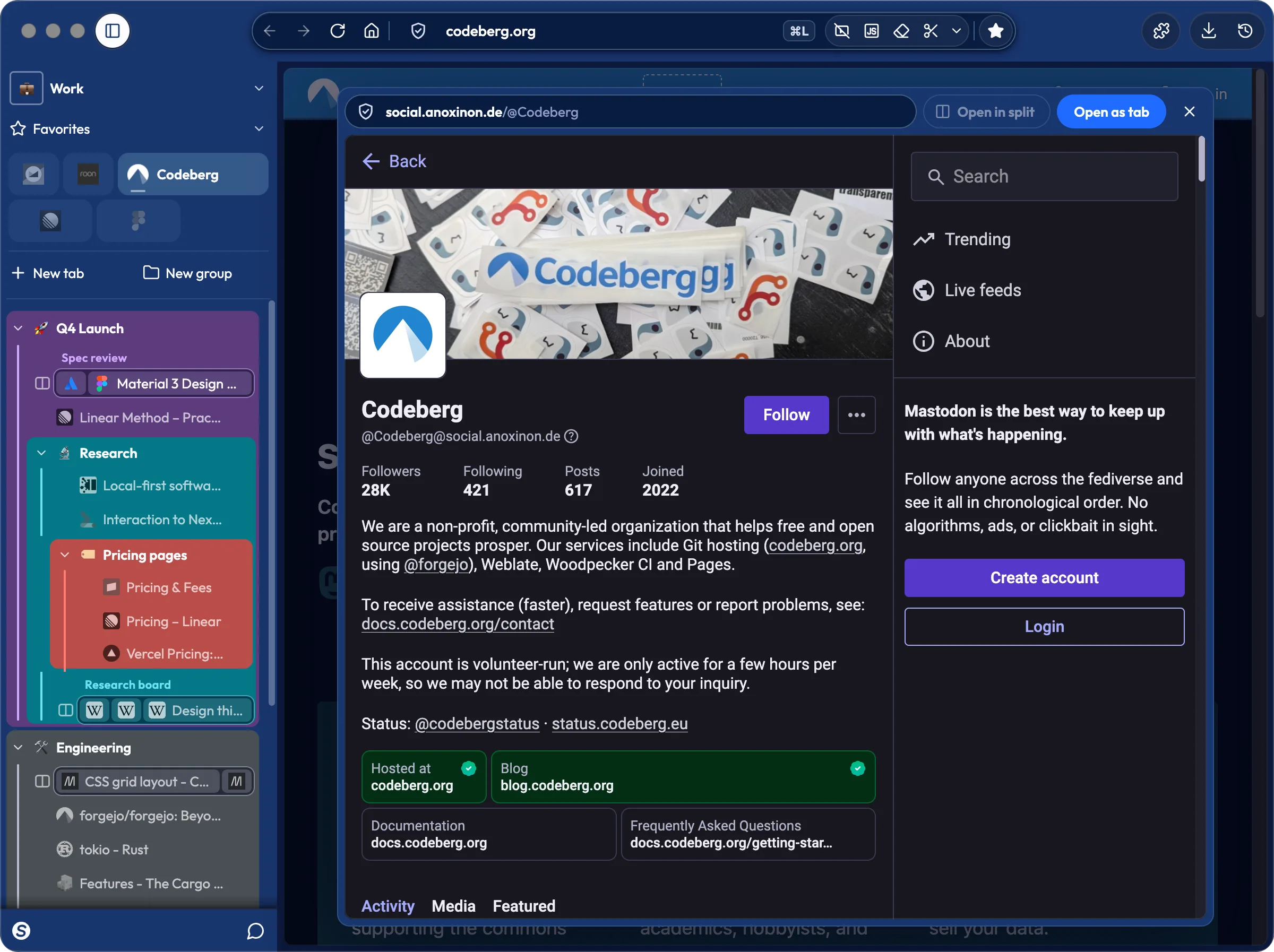
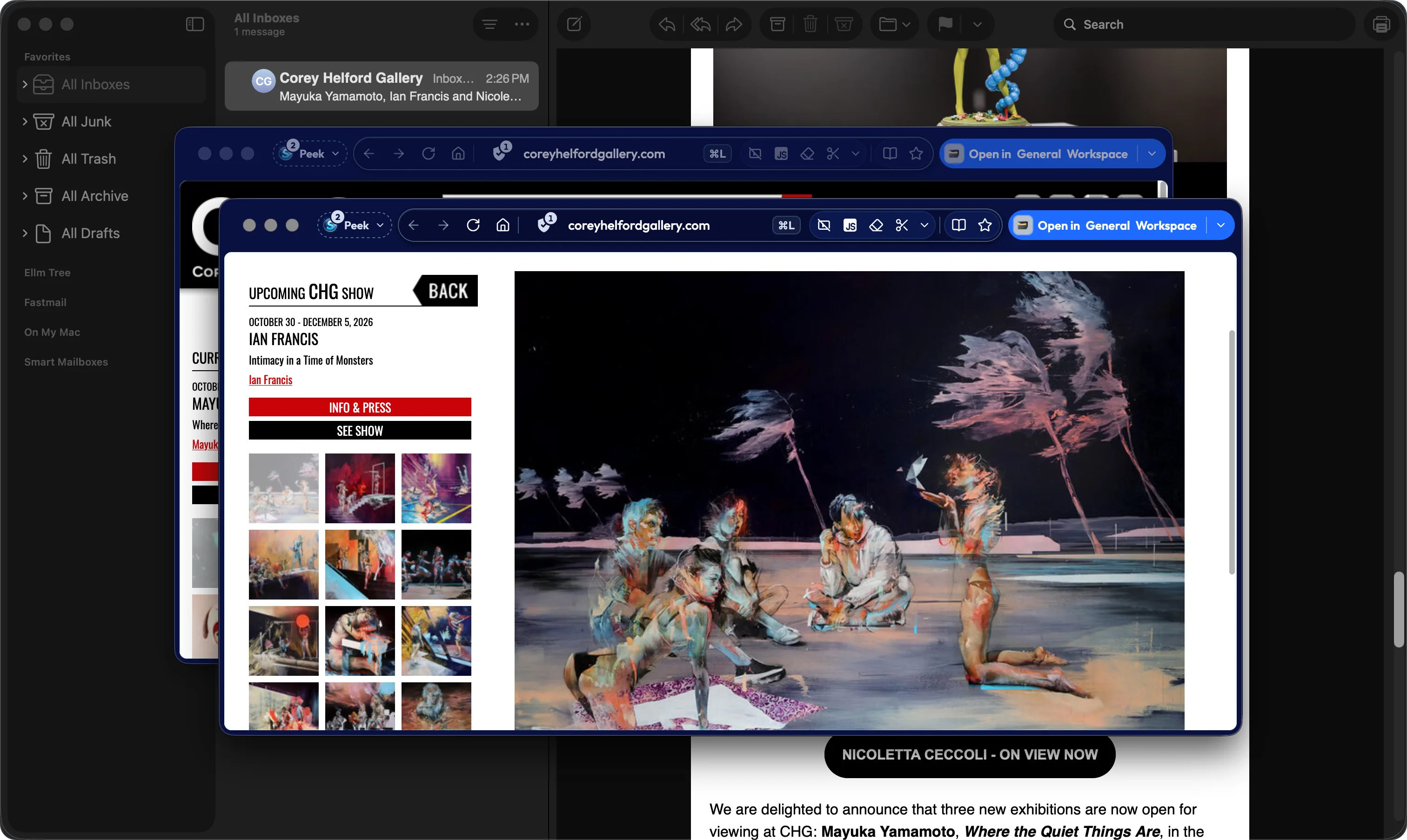
Pins stay in a row at the top of the panel and hold their place while you work elsewhere. Alt-click a link (Option-click on a Mac), or click one in Slack, Mail, or your terminal, and it opens in a Peek over the page you’re on. Links that lead off a pinned site open in a Peek too, and Peeks stack as you follow links.
Pins
A pin goes back to its saved page when you close it. Each Workspace gets its own copy, signed in as that Workspace, and you pick which Workspaces show it. ⌘1 to ⌘9 jumps straight to your pins.
Favorites
Bookmark a page and it goes in the Favorites menu in the panel. Pin a Favorite and it also shows up as a tile on your home page. Pins and Favorites sync with everything else.
Peek at a link
Press Escape to close a Peek, or keep it as a tab or a Split. You can turn this off in Settings › Links.
Links from other apps
Read it and close it, or keep it as a tab in any Workspace. Files you click go straight to your downloads folder. A Peek you leave alone closes after six hours, and you can change that in Settings › Links.
Send a site’s links to a Workspace
Add a rule in Settings › Links to send every Notion link, for example, straight to your Work Workspace. Your rules sync to your other devices.
Sval blocks ads and trackers by default
Sval doesn’t send usage data anywhere, and you decide what each site is allowed to do, down to its JavaScript and your camera.
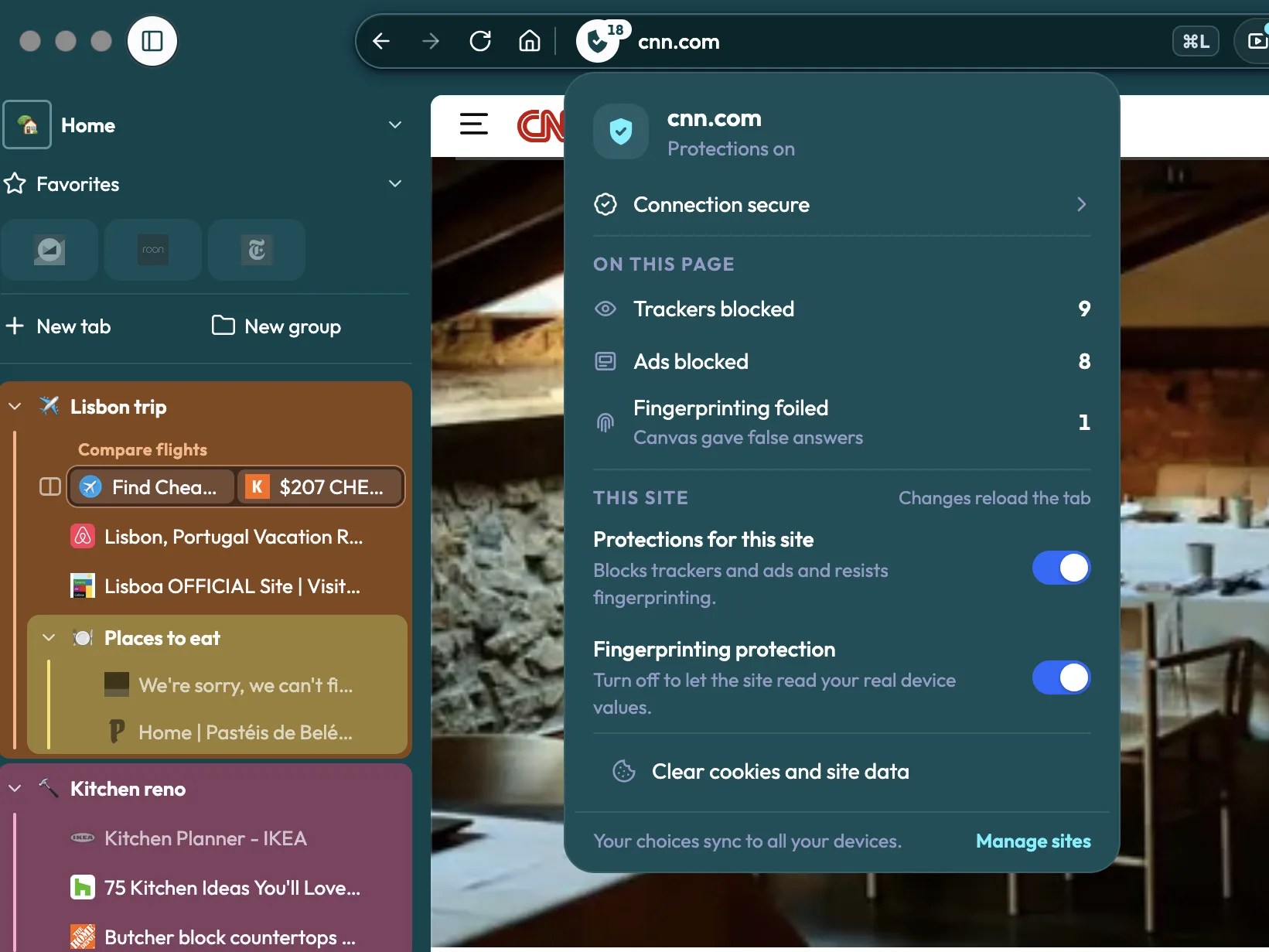
No telemetry
Sval doesn’t send usage data or run studies or experiments, and it never talks to advertisers, trackers, or account servers. Kagi, encrypted DNS, DRM for streaming video, and Sval’s feedback server stay out of it until you choose to use them.
Ad and tracker blocker
Sval blocks with open-source lists out of the box. You can pick Balanced, Strict, or None, or bring your own lists.
Fingerprinting protection
Fingerprinting protection is on from the start, and you can turn it off for any site.
Privacy and Security button
The button next to the address tells you whether Sval is protecting the site and warns you if the connection isn’t secure. Click it to see the certificate, check whether the site had a recent data breach (from Have I Been Pwned), or clear its cookies and data.
Blocked embeds ask first
Instagram, TikTok, X, and Disqus embeds show up as placeholders, and they only load if you allow them.
Secure DNS and Global Privacy Control
Sval supports Secure DNS and sends Global Privacy Control, which tells sites not to sell or share your data.
What Sval connects to, and why
Browse without leaving a trace
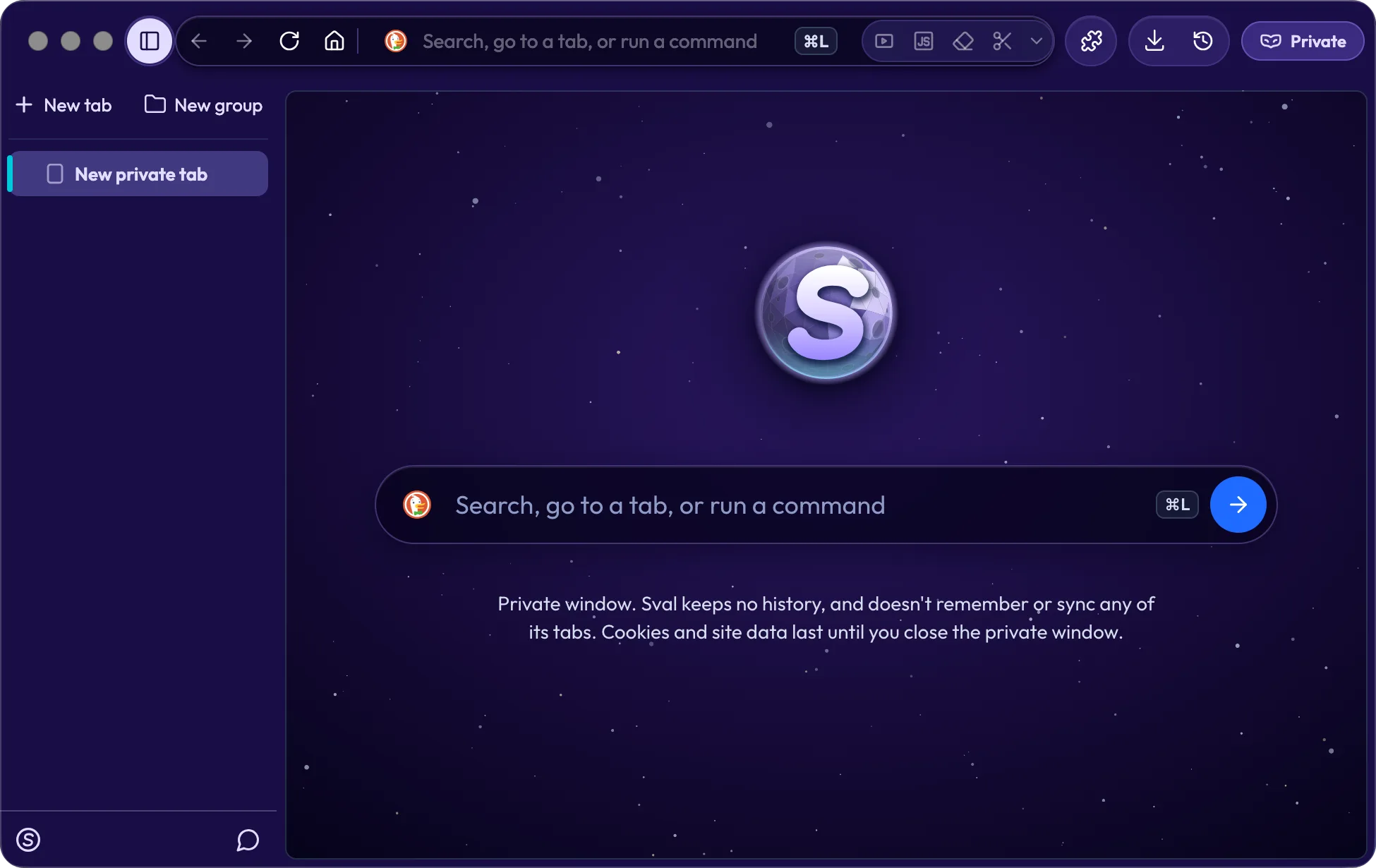
Press ⌘⇧N (Ctrl+Shift+N) for a private window. Each one is its own session, so two private windows can’t see each other’s cookies or site data. Nothing about its tabs is saved, and everything is deleted when you close it.
Every site plays by your rules
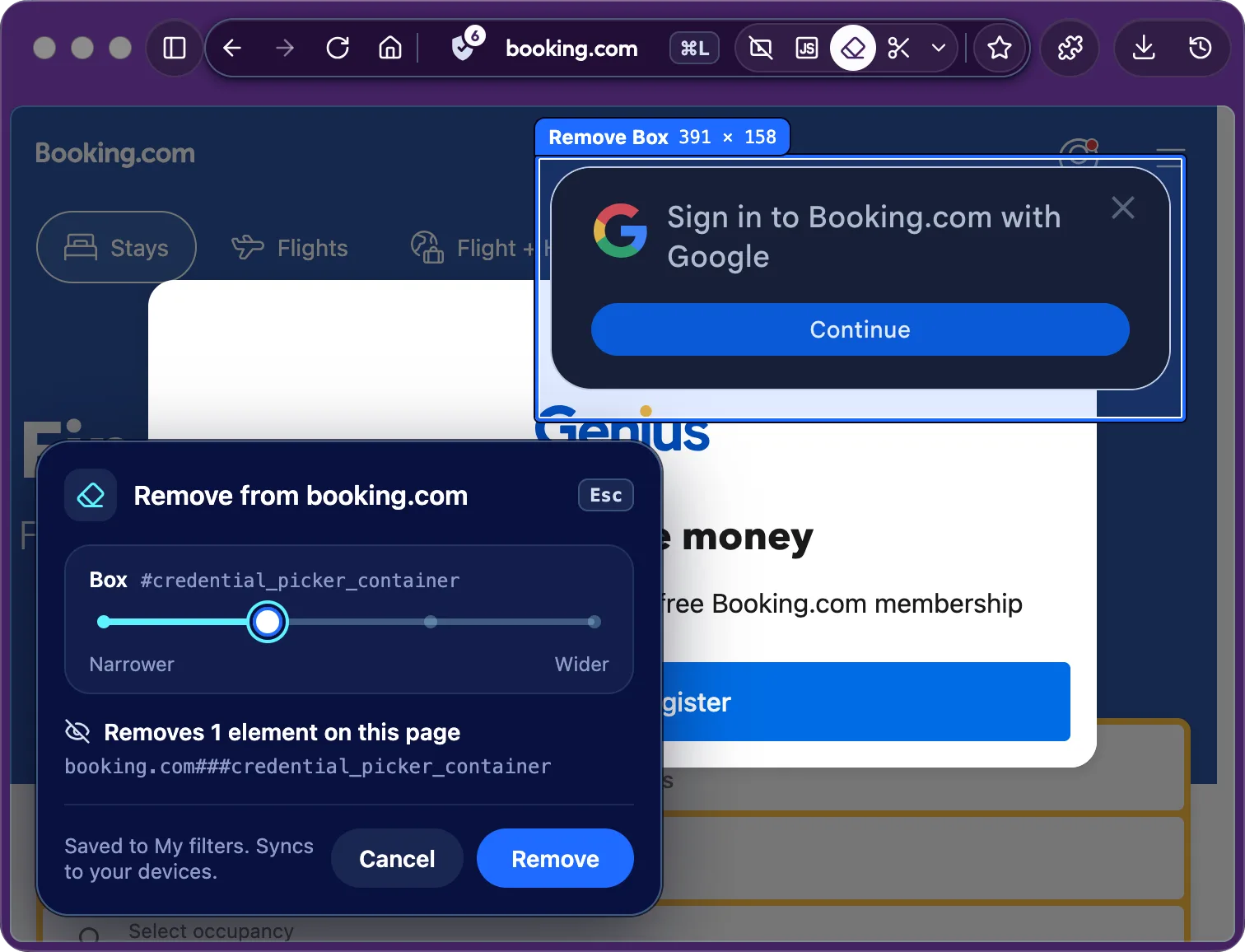
Decide what each site can do with video and audio, JavaScript, your camera, microphone, and location. Point at a cookie banner or sign-in popup you don’t want and remove it, and it stays gone every time you visit.
Site controls
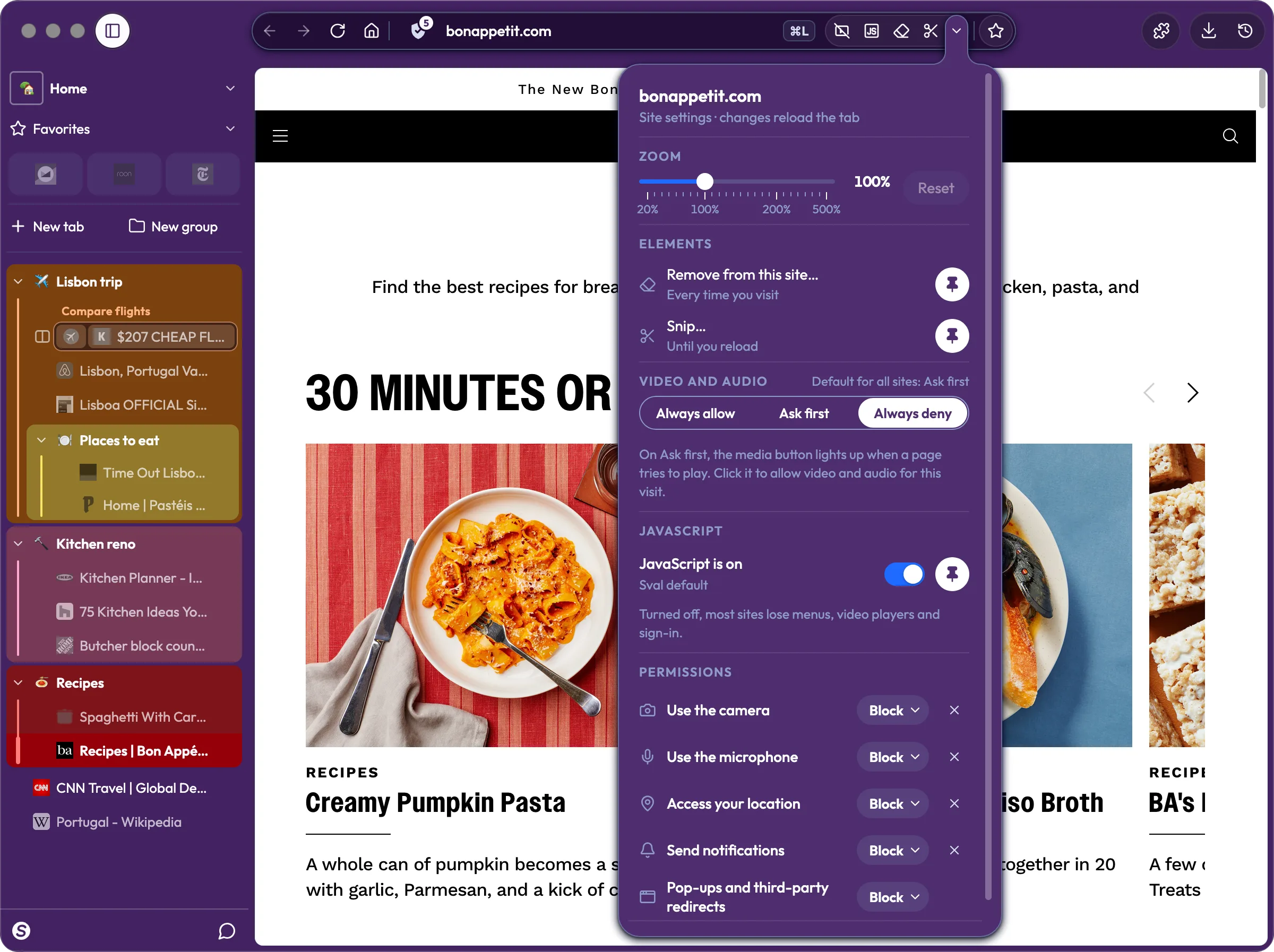
One click lets you change what a site can do with video and audio, JavaScript, or your camera and microphone.
Video and audio per site
Set video and audio to Always allow, Ask first, or Always deny, for one site or all of them.
JavaScript per site
Turn JavaScript off for a site you don’t trust, or turn it off everywhere and allow the sites you do.
Remove or snip part of a page
Point at a cookie notice or ad banner you don’t want, and remove it. Remove from this site keeps it hidden every time you come back, and Snip hides it until you reload.
Per-site controls
Every site you’ve made choices for shows up in Settings › Sites, with its own page for permissions, JavaScript, removed elements, and stored data. Forget this site clears all of it.
Find a tab, run a command, or search from one place
Press ⌘L (Ctrl+L) and start typing to start the Launcher. The Launcher finds matching tabs in every Workspace, Sval’s commands, and search suggestions.
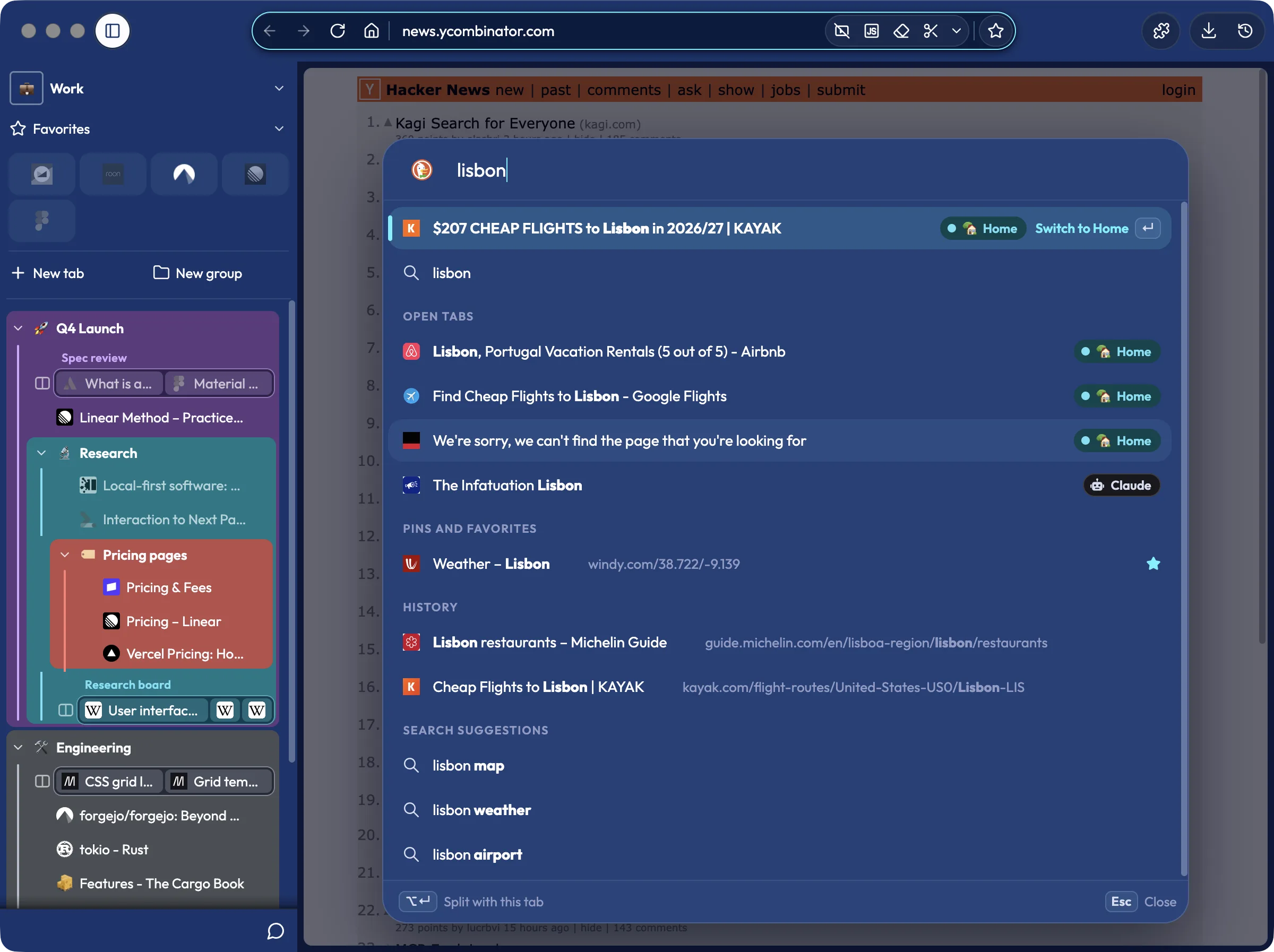
The Launcher
Type a few letters and the Launcher shows matching open tabs from every Workspace, along with pins, Favorites, commands, history, and search suggestions. If you want a different order or more results, change it in Settings › Search and Launcher.
Commands
Type “new wor” or “split” and press Enter to make a Workspace or a Split. There are commands for tabs, site settings, Settings pages, and more.
Choose where a page opens
Press Enter to open a result in this tab, or Shift+Enter for a new tab. ⌘⇧Enter (Ctrl+Shift+Enter) opens it in a new window, and ⌥Enter (Alt+Enter) opens it in a Split next to this tab.
One search everywhere
It doesn’t matter whether you search from the home page, the address bar, or the Launcher. They all work the same way.
Reader View
When you’re reading an article, click the book button next to the address bar or press ⌥⌘R (Ctrl+Alt+R) for Reader View.
Sync without an account
Pick a folder you already sync, like iCloud Drive or Dropbox, and Sval keeps your devices in step through it. Everything in it is encrypted, and only your devices have the key.
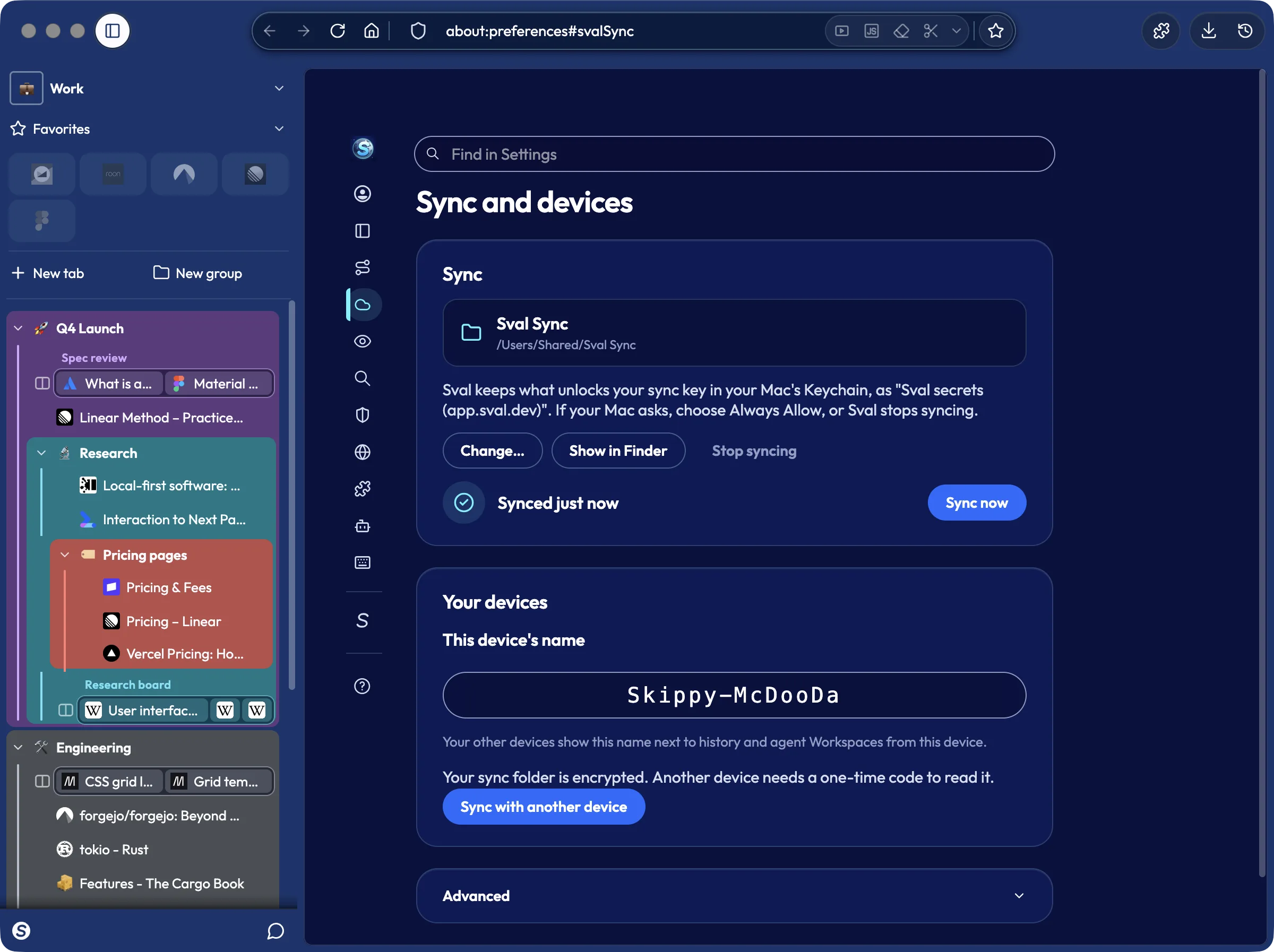
No account
Point Sval at any folder: iCloud Drive, Dropbox, OneDrive, a network drive, or a USB stick. Sval doesn’t run a sync service, so your data never touches our servers.
End-to-end encrypted
Everything Sval puts in the folder is encrypted with a key only your devices have, so your cloud provider can’t read any of it.
What syncs
Your tabs, Workspaces, groups, Favorites, history, and settings all come with you, including your site choices and your blocking setup.
Adding a device
The first time you open Sval, it asks if you’re starting fresh or joining your other devices. To add one later, go to Settings › Sync and devices › Sync with another device and enter the one-time code it gives you.
Use your own AI, or none at all
Sval has no built-in AI, and Firefox’s AI features are turned off. If you already use an assistant, you can let it work in Sval under your rules.
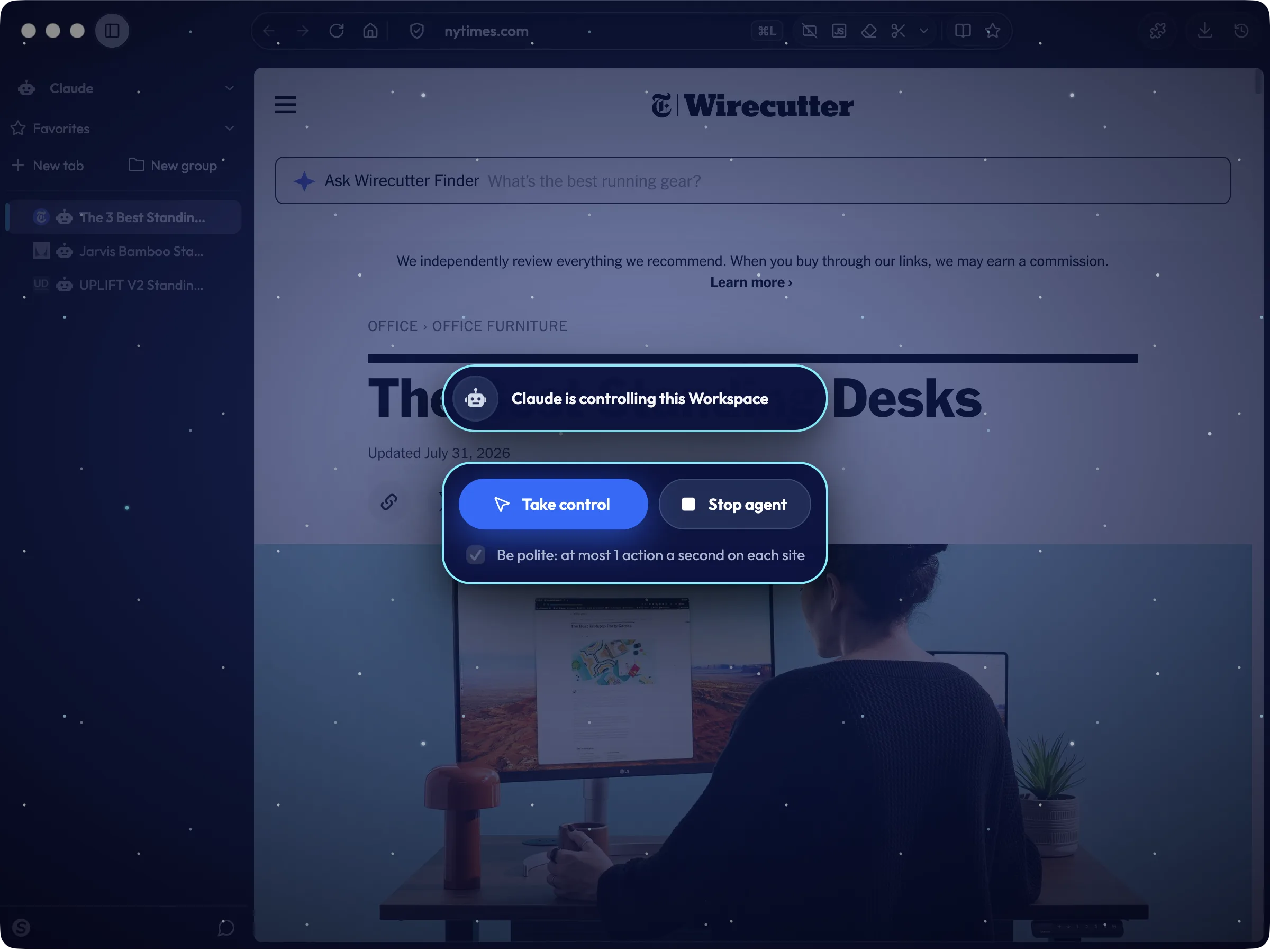
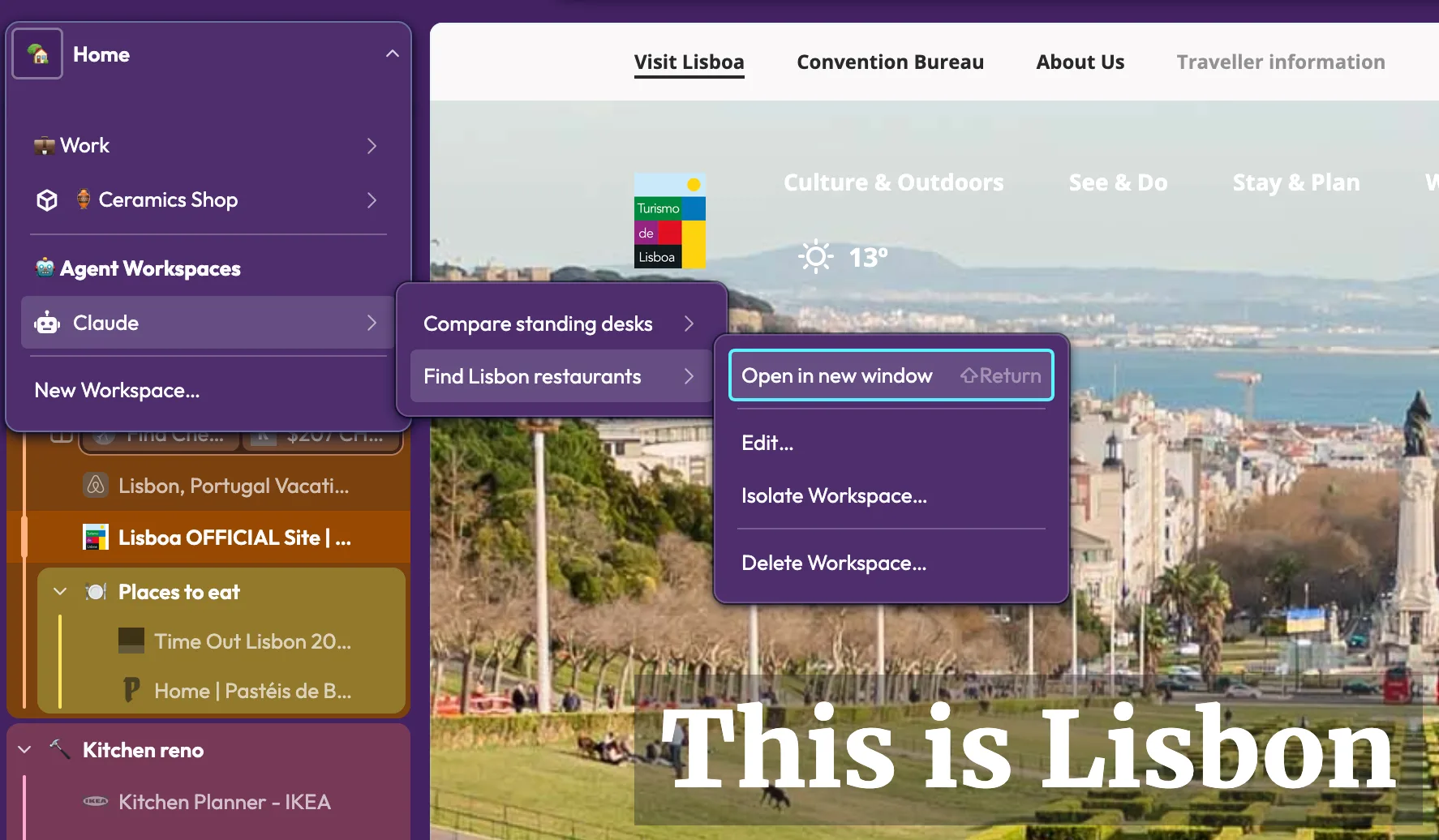
Let AI apps use the browser
Turn on agent access in Settings, and apps like Claude Code, Claude Desktop, Codex, ChatGPT, and Cursor can use Sval for you. Connect sets each one up in one click. If you know what MCP is, that’s what’s behind it: agent access is a built-in MCP server, so any MCP client can connect.
Each agent gets its own Workspace
Each agent works in its own Workspace, in a window that opens behind yours so it never steals your focus. It can only see its own tabs.
Your sign-ins, or none
You decide how much an agent can reach. Let it use your sign-ins to work in your accounts without ever seeing your passwords, or start it in an isolated Workspace that’s signed out of everything.
Your approval on agent actions
Sval checks with you before an agent visits a new site, sends something it typed, uploads or downloads a file, opens an app, or connects to a device on your local network. You can answer once or set a rule for that site, and each agent’s rules live in Settings › Agents.
Take control
Pause an agent whenever you want, use its tabs yourself, and hand them back when you’re done.
Show an agent a link
Peek at a link in an agent’s window and the agent can read and use it too.
Site tools for agents (WebMCP)
Some websites offer agents direct actions, like searching a catalog or adding something to a cart. The agent calls the action instead of clicking around the page, which is faster and more reliable. Site tools stay off until you turn them on, only work in an agent’s Workspace, and need the same approval as a click.
Use any search engine you like
You pick one when you first set up Sval, and you can change it or add your own later. No search engine pays to be the default.
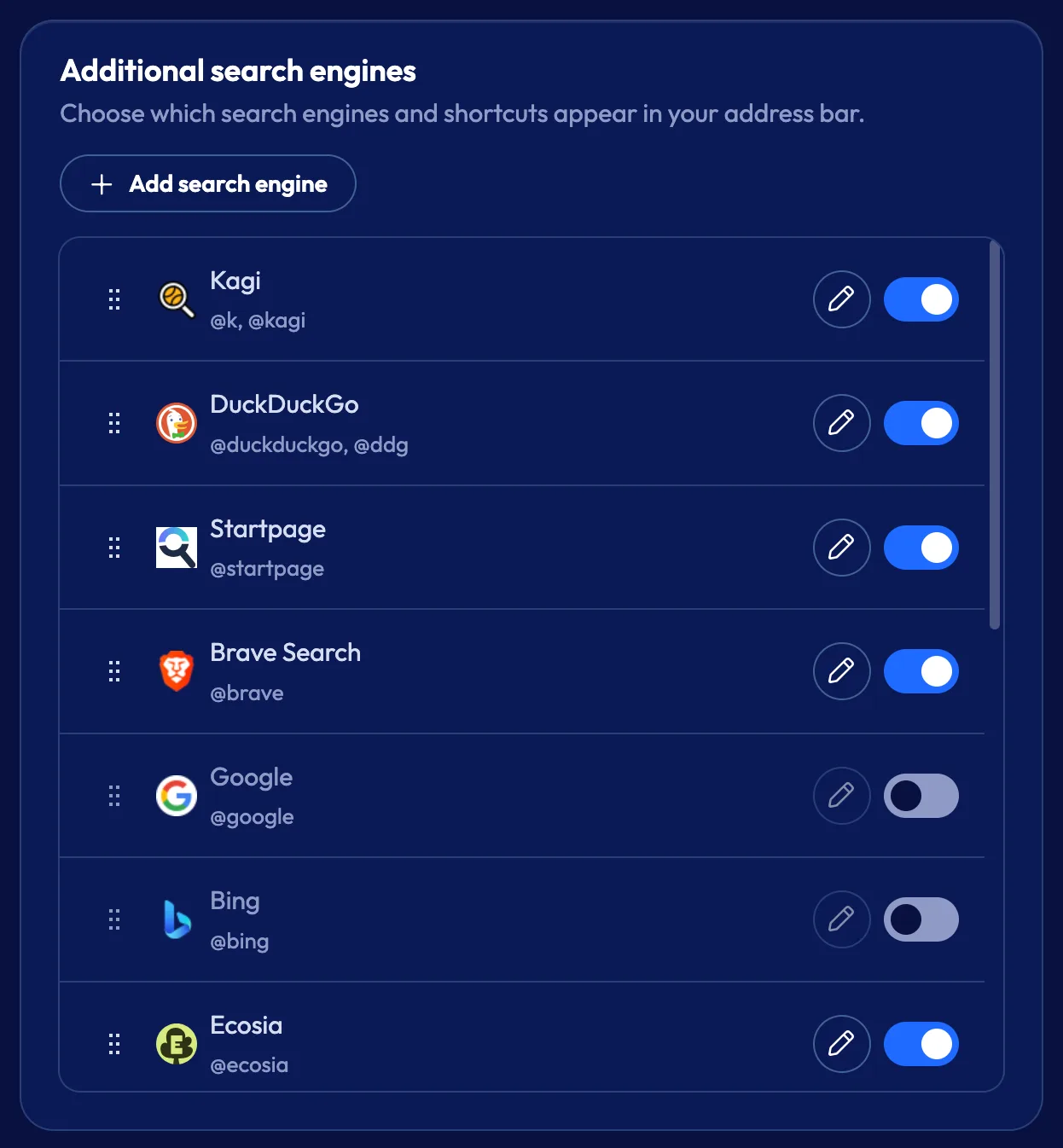
Your search engine
DuckDuckGo is the default, but you can switch to Kagi, Startpage, Brave Search, Ecosia, Qwant, Google, Bing, and others.
Kagi support
If you pay for Kagi, sign in when you set up Sval or later in Settings › Search and Launcher. In private windows, Sval uses Kagi’s Privacy Pass, which proves you’re a subscriber without saying who you are.
Add your own
If the search engine you want isn’t listed, you can add it yourself.
Your favorite ad-blockers still work
Sval runs Firefox extensions, so ad blockers like uBlock Origin keep the power to block every request.
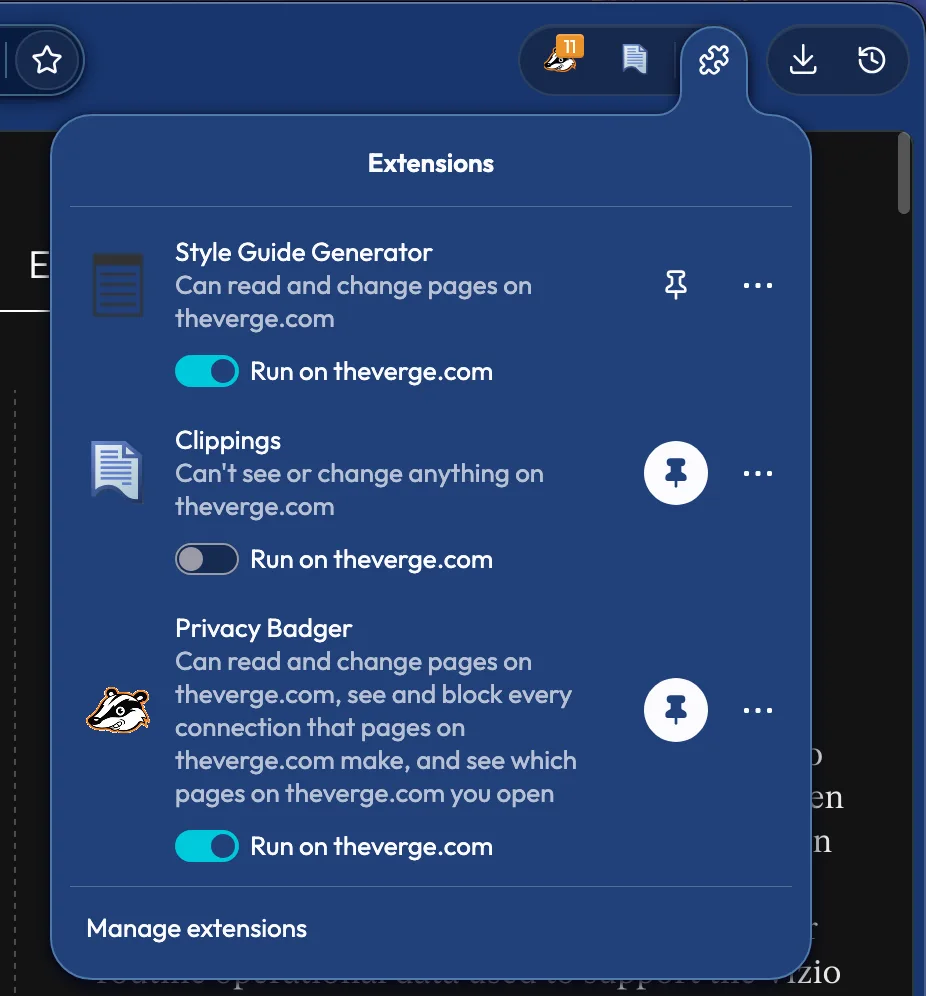
Full-strength ad blockers
An ad company shouldn’t get to decide what your ad blocker is allowed to block. Google killed Manifest V2 despite everyone’s protests and useful, ad-blocking extensions like uBlock Origin went with it. We still support Manifest V2 so you are back in control of what goes over your network.
Per-Site Extension Settings
Every extension has a per-site on/off switch, plus its own page for permissions, private windows, and options.
Bring your tabs and bookmarks from another browser
Sval can import from ten browsers or any bookmarks file. If you ever leave, you can take everything with you.
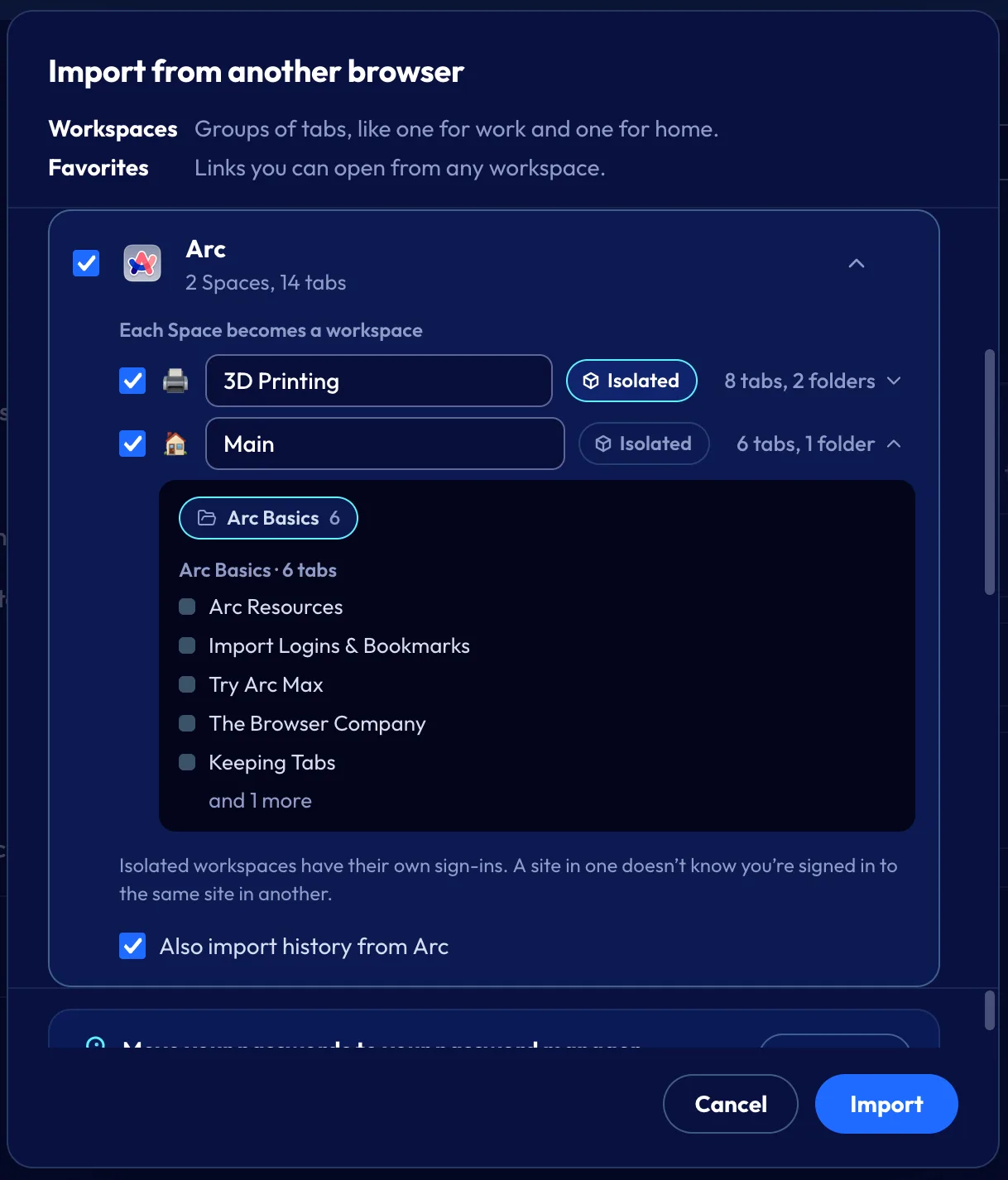
Import
Bring your open tabs, bookmarks, and history over from Chrome, Edge, Brave, Vivaldi, Arc, Dia, Safari, Orion, Firefox, Zen, or any bookmarks file. Your bookmarks become Favorites. Dia encrypts its open tabs, so from Dia you get bookmarks and history only.
Profiles become Workspaces
Every profile you bring over becomes its own Workspace, and you can isolate any of them. Arc and Zen Spaces, Vivaldi and Edge Workspaces, and Safari Tab Groups turn into Workspaces too, and they keep their look from Arc, Zen, and Vivaldi.
Tab groups stay grouped
Your tab groups from Chrome, Edge, Brave, Vivaldi, Firefox, and Zen come over with their colors, and so do Vivaldi’s tab stacks and Arc and Zen folders.
Arc and Zen pins and Splits
Arc’s Favorites and Zen’s Essentials come over as pins, and their splits come over as Splits.
Passwords
Sval doesn’t store passwords, so it works with your password manager’s extension instead. It also shows you how to export passwords from your old browser so you can move them into one.
Export
If you ever want to leave, export your Workspaces and Favorites in a format your next browser can import, or save everything Sval holds as one plain JSON file.
Keep using the password manager you have
Your passwords stay where you already keep them, and Sval never holds a copy.
Your password manager
Tell Sval which password manager you use when you set it up, and it installs the extension for you.
Passkeys and security keys
Passkeys and hardware security keys work on any site that supports them. On macOS and Linux, you can set a key’s PIN, manage its passkeys, and add fingerprints in Settings › Privacy and protection › Manage security keys.