

Colorshift a site
Colorshift changes how a site looks for you. Sval shows your changes every time you visit the site, and syncs them to your other devices.
A site you read every evening has a bright white page. Another uses a thin, small font that’s hard to read.
Open Colorshift
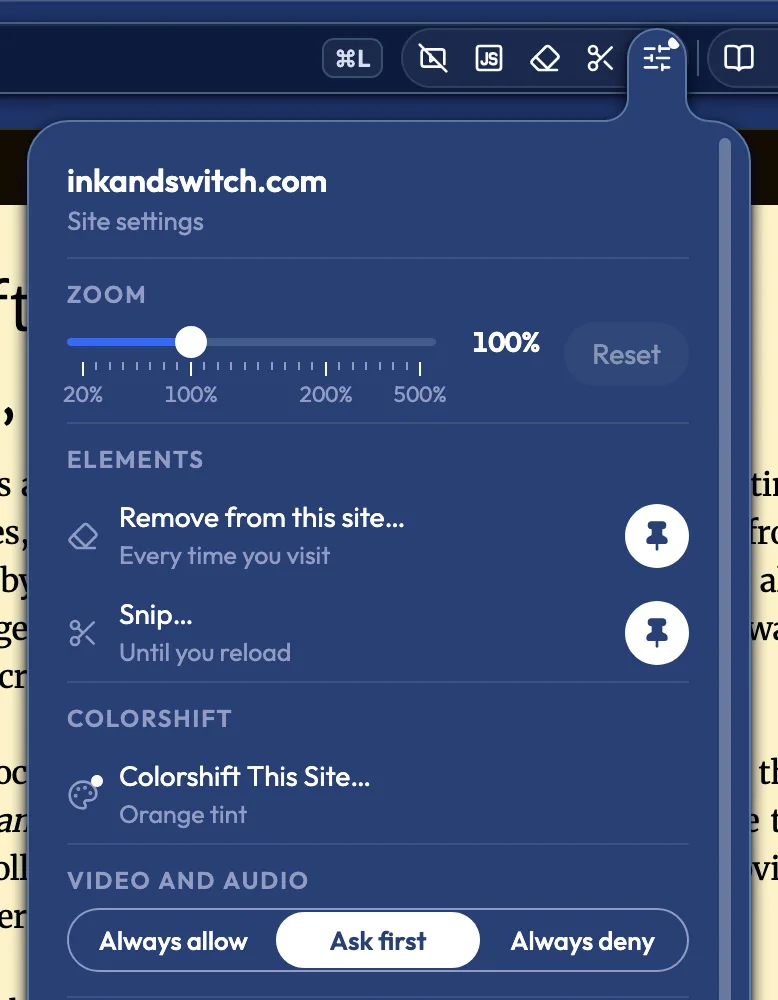
Section titled “Open Colorshift”- In the address bar, select the Site settings button.
- Under Colorshift, choose Colorshift This Site….
You can also choose Colorshift This Site… when you right-click the page or a tab in the Workspace, or choose Colorshift this site in the Launcher. To open Colorshift with a key, give Colorshift this site a key in Settings › Keyboard shortcuts.
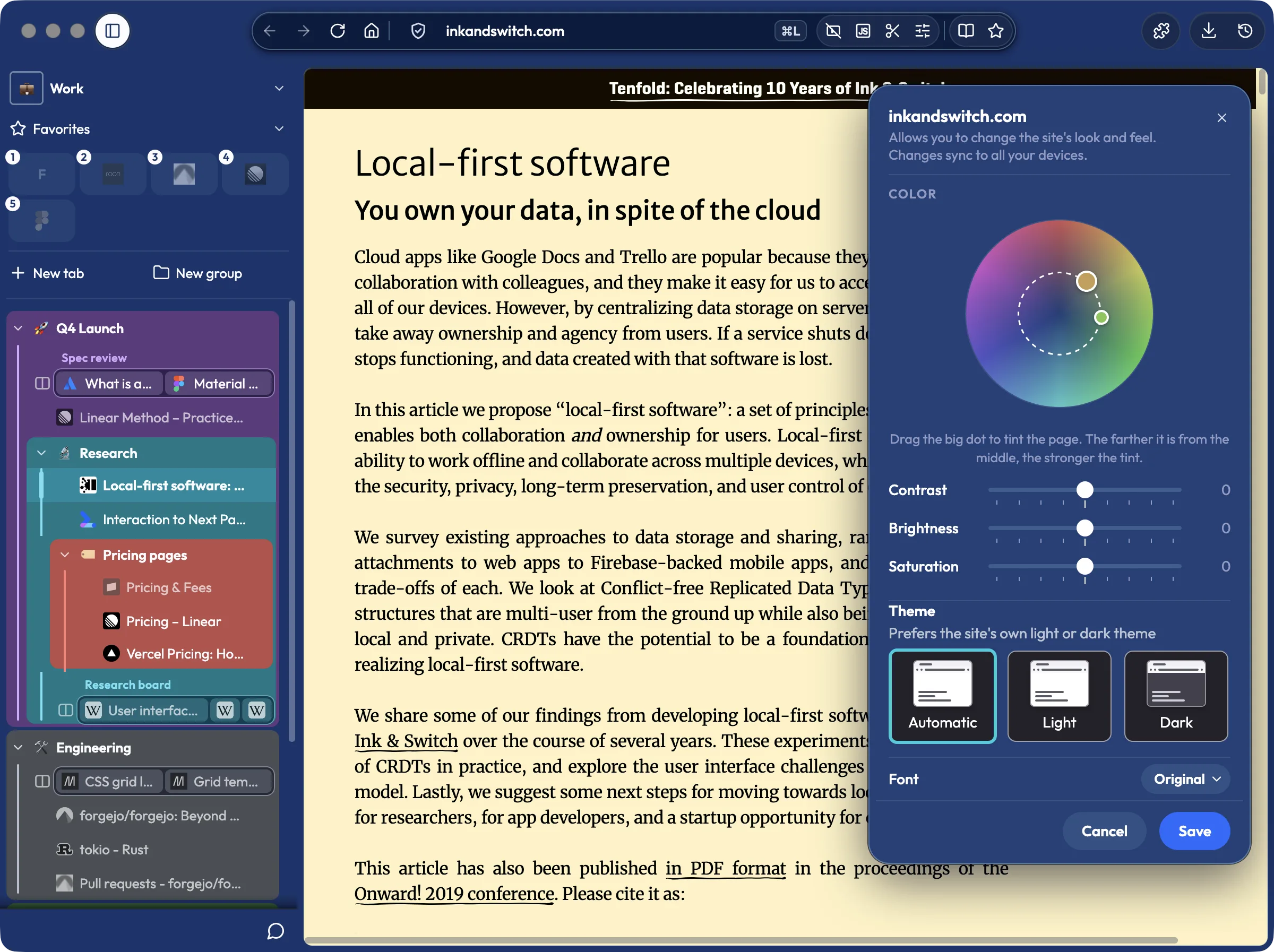
Colorshift opens over the page. The page shows each change as you make it, and nothing is kept until you select Save.
Tint the page
Section titled “Tint the page”- Drag the big dot on the color wheel toward the color you want. The farther the dot is from the middle, the stronger the tint.
- Optional: drag the small dot around the wheel to pick the color for the page’s text and other dark colors.
The page shows the tint as you drag. Light colors, like the page’s background, take the big dot’s color. Dark colors, like the page’s text, take the small dot’s color. To take the tint away, drag the big dot back to the middle.
Change the contrast, brightness, or saturation
Section titled “Change the contrast, brightness, or saturation”Drag the Contrast, Brightness, or Saturation slider. The middle of each slider leaves the page as it is.
Pick a light or dark theme
Section titled “Pick a light or dark theme”Under Theme, choose Automatic, Light, or Dark.
- Automatic lets the site follow Sval’s own light or dark theme.
- Dark asks the site for its own dark theme. When the site has none, Sval turns the page’s colors dark and leaves pictures and videos as they are.
- Light asks the site for its own light theme. When the site has none, Sval turns a dark page’s colors light.
Change the font
Section titled “Change the font”Select the menu next to Font, then pick one.
- Original keeps the site’s own font.
- System is your computer’s interface font.
- Serif and Monospace use your computer’s serif and monospace fonts.
- Readable is Atkinson Hyperlegible when you’ve installed it, and Verdana or DejaVu Sans otherwise.
Keep your changes or go back
Section titled “Keep your changes or go back”- To keep your changes, select Save. Sval shows the site that way every time you visit, and Colorshift closes.
- To go back, select Cancel. The page looks the way it did when you opened Colorshift, and Colorshift closes. Close and Escape do the same.
Start over
Section titled “Start over”When the site has a saved Colorshift, select Reset style. The page shows the site’s own look. Select Save to remove the saved Colorshift, or Cancel to keep it.
Details
Section titled “Details”- A tint moves each of the page’s colors toward the color you picked. Each color moves toward the color you picked more than it gets lighter or darker, so text stays readable against its background.
- With the keyboard, select a dot and use the arrow keys. Left and Right turn the dot around the wheel. Up and Down move both dots out from the middle or back in.
- With Light or Dark chosen under Theme, the page keeps your tint and slider changes.
- Colorshift stays open while you use the page or the site settings menu. To move Colorshift, drag its title. Switching tabs closes Colorshift as Cancel does.
- On an address like
nas.example.com, the site’s name in the title is a menu. Use the menu to pick whether the changes cover that address or all ofexample.com. The menu starts on that address. - When the site has a saved Colorshift, a dot shows on the Site settings button, unless the button shows a count. The Colorshift row in the site settings menu carries the same dot and lists what the Colorshift changes, such as “Blue tint, dark theme, serif font”.
- Colorshift is off in private windows, because it saves your changes.
- Forget this site removes the site’s Colorshift changes.
- The color wheel comes from Zen Browser’s Boosts.
- Colorshift changes colors and fonts. To hide part of a page, see Remove or snip part of a page.
If something goes wrong
Section titled “If something goes wrong”- With Dark chosen, a dark page shows light for a moment. Sval turns the page dark as it loads. Once Sval sees the page is already dark, it stops changing the page’s colors.
- Icons turned into letters or boxes. The site draws its icons with a font. Choose Original under Font.
Related pages
Section titled “Related pages”© 2026 Ellm Tree, Inc. Sval is not officially associated with Mozilla or its products. Firefox is a trademark of the Mozilla Foundation in the US and other countries.