

Make a Workspace see-through
A see-through Workspace lets your desktop show through the whole window around the page, tinted with the Workspace’s color. The page itself stays solid.
You keep a photo of the coast as your desktop picture, and you’d like to see some of it around your Home Workspace’s tabs.
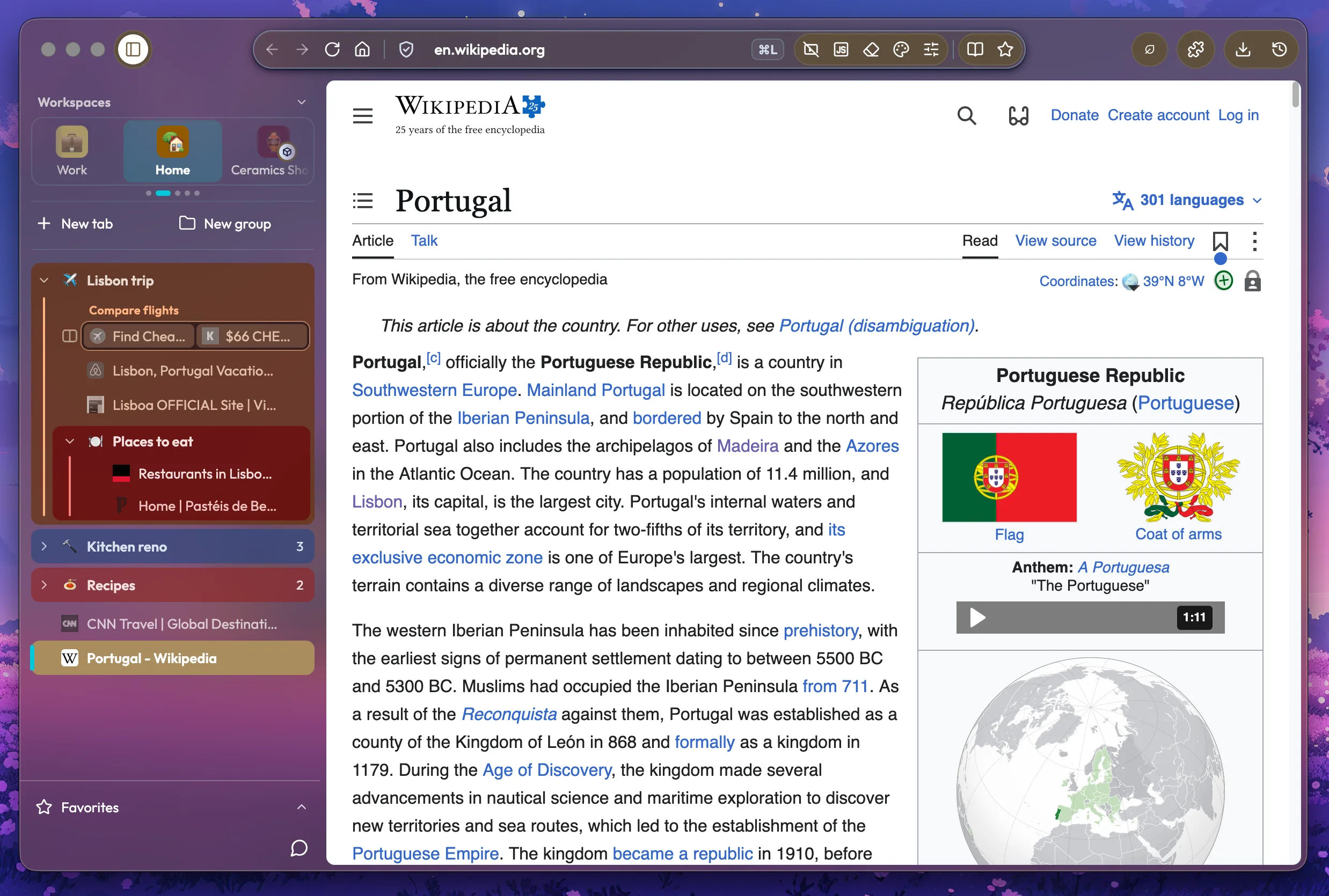
- Above your tabs, right-click the Workspace’s name.
- Choose Edit….
- Under Color, drag Transparency to the right.
- Select Save.
Details
Section titled “Details”- Transparency works on a Mac, on Windows 11, and on Linux on Wayland, in GNOME 51 and later or KDE Plasma 6.7 and later. On Windows 10, and on Linux desktops that can’t blur what’s behind a window, the window stays solid and the dialog has no Transparency.
- A Workspace with No color can be see-through too, in Sval’s own window color.
- The window keeps at least a third of its color, so the Workspace’s color always shows. Sval picks text that reads on that color alone, so a very light or very dark window behind Sval’s window can make the text harder to read.
- On a Mac, turning on System Settings › Accessibility › Display › Reduce transparency makes the window solid and hides Transparency. On Windows, turning off Transparency effects in the Windows Colors settings does the same, and on Linux so does your desktop’s high contrast setting.
- The New Workspace dialog has Transparency too, so you can set it when you make a Workspace.
Related pages
Section titled “Related pages”© 2026 Ellm Tree, Inc. Sval is not officially associated with Mozilla or its products. Firefox is a trademark of the Mozilla Foundation in the US and other countries.